We remain fully operational. Our teams are working around the clock to ensure your deliveries continue safely.

下载应用程序


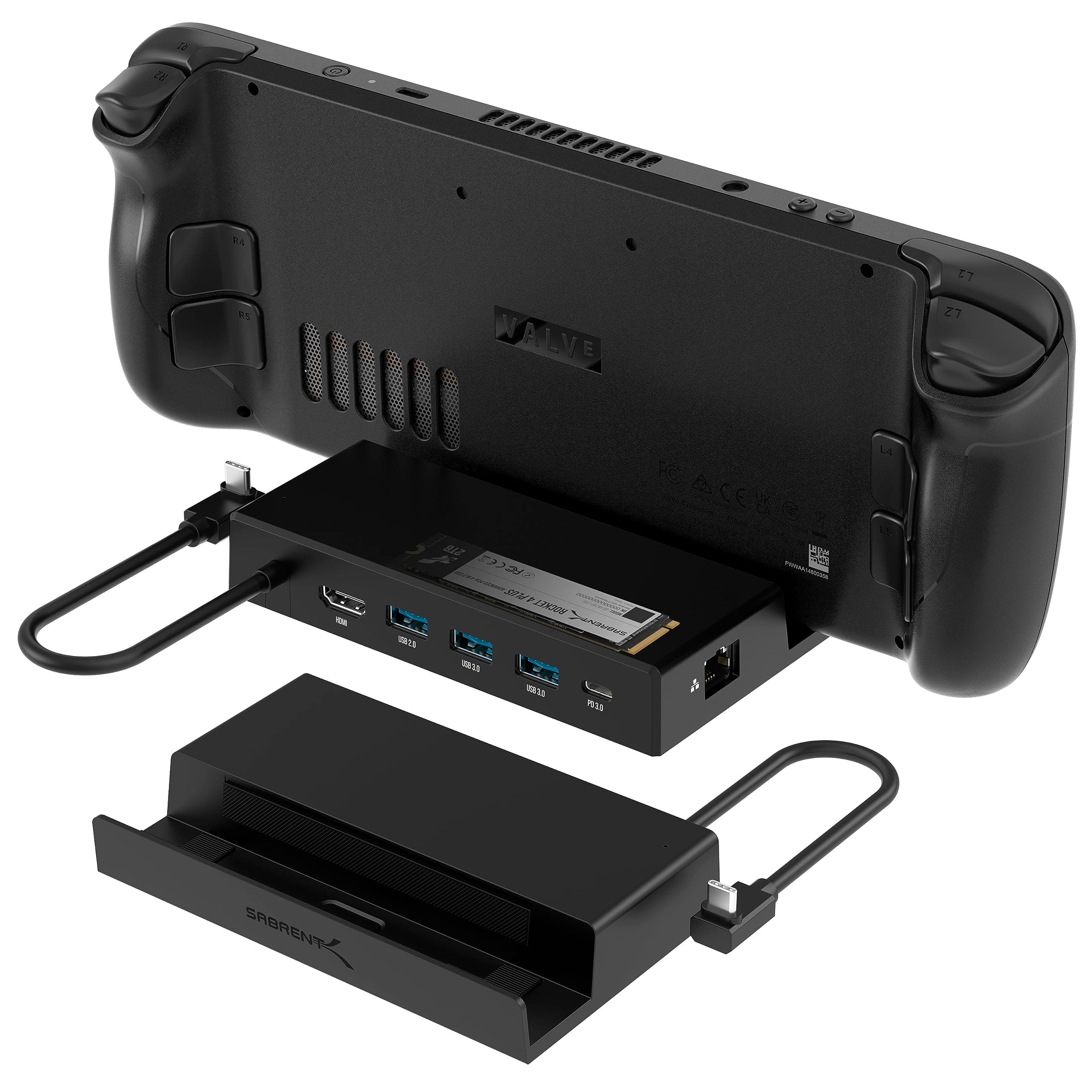
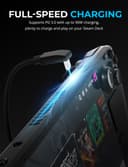

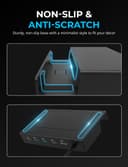
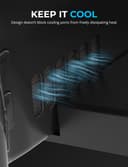

🚀 Elevate your Steam Deck setup—dock, charge, and conquer in 4K clarity!
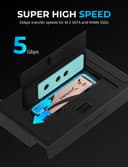
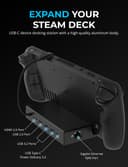
The SABRENT 7-in-1 Docking Station is a powerhouse accessory designed for Steam Deck and similar USB-C devices. Featuring a dedicated M.2 SSD slot for expandable storage, HDMI 2.0 supporting 4K@60Hz output, gigabit Ethernet for ultra-fast wired internet, multiple USB ports for peripherals, and a 90W USB-C charging port, it transforms your handheld gaming device into a full desktop experience. Compatible across Windows, macOS, and Linux, this compact dock is a must-have for professionals and gamers seeking seamless connectivity and performance.


| ASIN | B0CFCXJ7DY |
| Best Sellers Rank | #7,502 in Electronics ( See Top 100 in Electronics ) #113 in Laptop Docking Stations |
| Brand | SABRENT |
| Built-In Media | Docking Station. |
| Color | Multicolor |
| Compatible Devices | Valve Steam Deck, Asus ROG Ally |
| Customer Reviews | 4.5 4.5 out of 5 stars (5,726) |
| Global Trade Identification Number | 00840025261617 |
| Hardware Interface | Ethernet, HDMI, USB |
| Item Dimensions L x W x H | 5.31"L x 3.24"W x 0.98"H |
| Item Type Name | Steam Deck Docking Station |
| Item Weight | 5 Ounces |
| Item Width | 3.24 Inches |
| Manufacturer | SABRENT |
| Number of Ports | 6 |
| Total Number of HDMI Ports | 1 |
| Total Usb Ports | 4 |
| UPC | 840025261617 |
| Unit Count | 1.0 Count |
| Warranty Description | 1 year limited. 2 years with registration. |
| Wattage | 90 watts |
B**B
Great upgrade for the Surface Pro 8
I had read a lot of horror stories about upgrading the M.2 NVMe drive on the Surface Pro 8 (SP8). There were a lot of stories about overheating and BSOD when trying to re-install Windows. When I saw this Sabrent drive advertised on Amazon it specifically said Surface Pro compatible and that it ran cool, so I took a chance on it. I am very pleased with the result. I'll do the TL;DR part up front: I upgraded my 256GB M.2 Drive on my Surface Pro 8 with the 1 TB Sabrent Rocket 2230 NVMe M.2 drive, and the drive runs great at PCIe 4.0 Speeds according to CrystalMark 8. No BSOD and runs under 50 Celsius *EDIT*: Under maximum load, about 35 degrees celcius degrees idle/normal operations *END EDIT* according to CrystalDiskInfo 8. I was able to copy all of my files using Acronis partitioning software you get to use free from Sabrent when you purchase their drive. If you want to know exactly how I copied everything over without ever having to go into the BIOS, keep reading: UPFRONT DISCLAIMER: You will need to purchase three things to do this upgrade if you don't have them already. Two of them you would need anyway if you were to upgrade like Microsoft suggests: #4 Torx screwdriver/bit, thermal compound, and an external NVMe drive enclosure. 1) First I did purchase an external NVMe enclosure to copy the old drive to the new one. You can find them on Amazon for under $30 US. You need to make sure the enclosure can take 2230 size drives. I got one that had USB C to USB C cable and was thunderbolt compatible. Another consideration is that after you swap the NVMe drives you can use the enclosure with your old drive and have another high speed hard drive to back stuff up on, although I found you will need an NVMe thermal pad/heatsink for the old drive or it can overheat. 2) After reading about BSOD NVMe upgrade horror stories on the SP8 it lead me to articles talking about AHCI Link Power Management - HIPM/DIPM. HIPM/DIPM power management is not on by default and you actually have to do a Windows registry edit to make it available. There are some good guides on how to do this via a quick google search. I recommend you enable it and turn the feature on. 3) I had to disable drive encryption before copying files over (it is on by default). You can either disable encryption or get a USB encryption key. I chose to decrypt the drive which will take hours depending on how much data you have on the drive. You can re-encrypt once everything is over to the new drive. THIS NEXT PART IS WHERE MOVING FILES OVER AND GETTING WINDOWS SETEP ON THE NEW DRIVE DIFFERS FROM WHAT MICROSOFT WANTS YOU TO DO. 4) I cannot stress enough the kudos to Sabrent for having their own disk partition software. Acronis, which you can get from Sabrent's website, will copy all of your files over for you verbatim; no reinstalling necessary. Follow the disk cloning prompts, and the best part is it will automatically increase the size of your main windows drive to maximum while keeping your boot partition and recovery partition intact (just make sure you chose the correct cloning prompt). Acronis alone makes it worth it to go with Sabrent. 5) The SP8 comes with a front and back metal sleave for the NVMe drive. YOU WILL NEED a #4 Torx screwdriver bit (very tiny!) to unscrew the drive and screw it back in. The metal casing snaps off (do so gently so as not to bend the casing). I cleaned off the thermal compound the old drive had, put in the Sabrent drive, re-applied some CPU thermal compound I already had, and put the casing back together, then screwed it back into the SP8. A lot of videos show using a thermal pad instead of re-using the Microsoft drive enclosure. I think the drive enclosure helps distribute heat evenly back into the SP8 chassis. I turned the SP8 on and it recognized me with all of my files intact without ever having to go into the BIOS the first time. I have been running normally for almost two weeks and not a single issue. Drive runs cool and fast. Works great and couldn't be happier. I hope this helps you out if you are on the fence!
I**R
If upgrading a Surface Pro 8, you need to read this
PCIe Gen 4 drives do have a compatibility issue with Surface Pro 8 and possibly 9 too were it randomly reboots and is very unstable. This drive does work without any issues if you make the following changes before cloning existing drive to it. I get double the speed from my stock drive at 4600MB/s read speeds and battery last around 6 hours (same as my stock) at 120Hz refresh, 50% brightness and using the keyboard at lowest backlight setting and just browsing the web over Wifi 6. Drive temperatures stayed at 41C or below at high load. This is what you need to do before cloning. Step #4 is necessary for stable upgrade without random reboots. 1.) Update Windows 11 to 22H2 2.) Download the latest firmware updates for Surface Pro 8, there are some recent ones. Launch the surface app and verify that you have the latest. These are my versions. SAM: 11.101.139.0 UEFI: 18.102.141.0 3.) Turn off bitlocker so the drive is decrypted, you can turn bitlocker again after you replace the drive. 4.) In control panel, search for an applet called Power Options, it's under the advance power settings when you try to edit the Power plan. Under PCI Express, change PCI Express -> Link Power State Management to Moderate Power Savings, default is maximum power savings, this was what was causing random reboots for me. This is the only change that is needed from the default factory image that ships with Surface Pro 8. 5.) Clone to Sabrent drive using an external USB C enclosure that can house a 2230 ssd (there are several sold here). You can use their free Acronis tool from Sabrent's website. I personally used Macrium Reflect free version to clone as it kept the partitions the same as before, Acronis does merge the partition's which causes issues when trying to do a factory reset or recovery as partition will not be found. 6.) Swap the drives. I did not re-use the metal surface pro ssd enclosure, I instead added .5mm thermal pad directly to the top of the Sabrent Drive, it fits nicely. With 1mm thermal pad, the magnetic door did not close, so .5mm is only choice. Max temperature at high load was 41c. 7.) Boot to your new drive, test to make sure its stable, you can re-enable bitlocker to encrypt drive again. There is an optional setting you can set before or after the clone, which may give you better battery life. There is a hidden power setting in Power Options under Hard disk called AHCI Link Power Management - HIPM/DIPM By default it's already set to HIPM (Host Initiated Power Management), you can set this setting to Lowest for battery to give you deeper sleep states if supported, the drive still wakes up fast regardless of the power state. To enable this setting in Power Options you can add this to the registry. Create a text file in notepad that ends in .reg extension, example "Add_AHCI_Power_Setting.reg" without quotes. Copy and paste registry setting below (line starts with [HKEY....) into the file and save it, double click the file in file explorer to add this setting into your registry (when prompted, click yes). This option will now show up in Power Options under Hard disk. For battery, set to Lowest, for Plugged In, you can set to Active (There is no power management with this option), for faster performance. [HKEY_LOCAL_MACHINE\SYSTEM\CurrentControlSet\Control\Power\PowerSettings\0012ee47-9041-4b5d-9b77-535fba8b1442\0b2d69d7-a2a1-449c-9680-f91c70521c60] "Attributes"=dword:00000002
J**S
Exceptional quality and speed!
The SABRENT Rocket 2230 NVMe 4.0 1TB SSD was the perfect addition to my ASUS ROG Ally handheld build, providing much-needed additional storage space and performance. Assembling a compact and powerful gaming device required careful consideration of storage options, and the Rocket 2230 NVMe SSD fit the bill perfectly. Its compact form factor and high-speed PCIe 4.0 interface seamlessly integrated into the build, offering blazing-fast read and write speeds for smooth gaming experiences. With 1TB of storage capacity, I have ample space to store my favorite games, apps, and media files without worrying about running out of space. The reliability and performance of the SABRENT SSD have exceeded my expectations, contributing to the overall success of my handheld gaming setup. If you're looking to upgrade your gaming device with additional storage and speed, I highly recommend the SABRENT Rocket 2230 NVMe 4.0 1TB SSD. It's a game-changer!
C**Y
Works as expected
Works good, has enough ports for all of my hardware, it allows me to charge my device and also use a mouse + keyboard. Great overall.
B**S
2 years later and still flawless
I’ve been using this mini NVMe drive in my Steam Deck for about two years now with zero complaints. It was super easy to install, instantly recognized, and more than doubled my storage space. Load times are fast, performance has stayed consistent, and it’s handled all my games without a hiccup. Definitely one of the best upgrades I’ve made for the Deck.
A**S
Works perfectly!! I am able to charge my rog ally while using a usbc controller and I am able to connect it to my tv using hdmi, there is a weird line kind of through the screen when using hdmi but it's hardly noticeable after awhile. Not sure if it might be my HDMI cord going to try a different one and see. Still a must have for the rog !!
P**T
Bought this for my Pi5 - was one of those to add on NVMe card and was fully compatible (unlike some other big name brands). Running thsi as my primary boot disk on Pi 5 - yep just look up how to do it on YouTube.
R**L
👍🏼
G**Y
Die Sabrent tut was Sie soll. Die Lese- und Schreibgeschwindigkeit sind hervorragend. Ich schreibe jetzt hier keine Wischi Waschi Benchmark Daten für Enthusiasten. Alles in allem kann man aber sagen, fühlt sich der Gebrauch des Speichers bein installieren, kopieren von Daten sehr flott an. Das kleine 2230er Format ist zudem ideal geeignet für kleinere tragbare Computer/Handhelds, die nur kurzere Längen der M.2 Varianten zulassen. Für normale PCs empfehle ich aufgrund des Kaufpreises eher die gängigen langen Größen, da diese zum Teil wesentlich günstiger sein können.
B**O
Works wonders for the steam deck swap and still golds up to this day almost since the console came out!!
TrustPilot
4天前
1天前