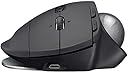
🎯 Elevate your workspace comfort and precision — because your wrist deserves the upgrade.
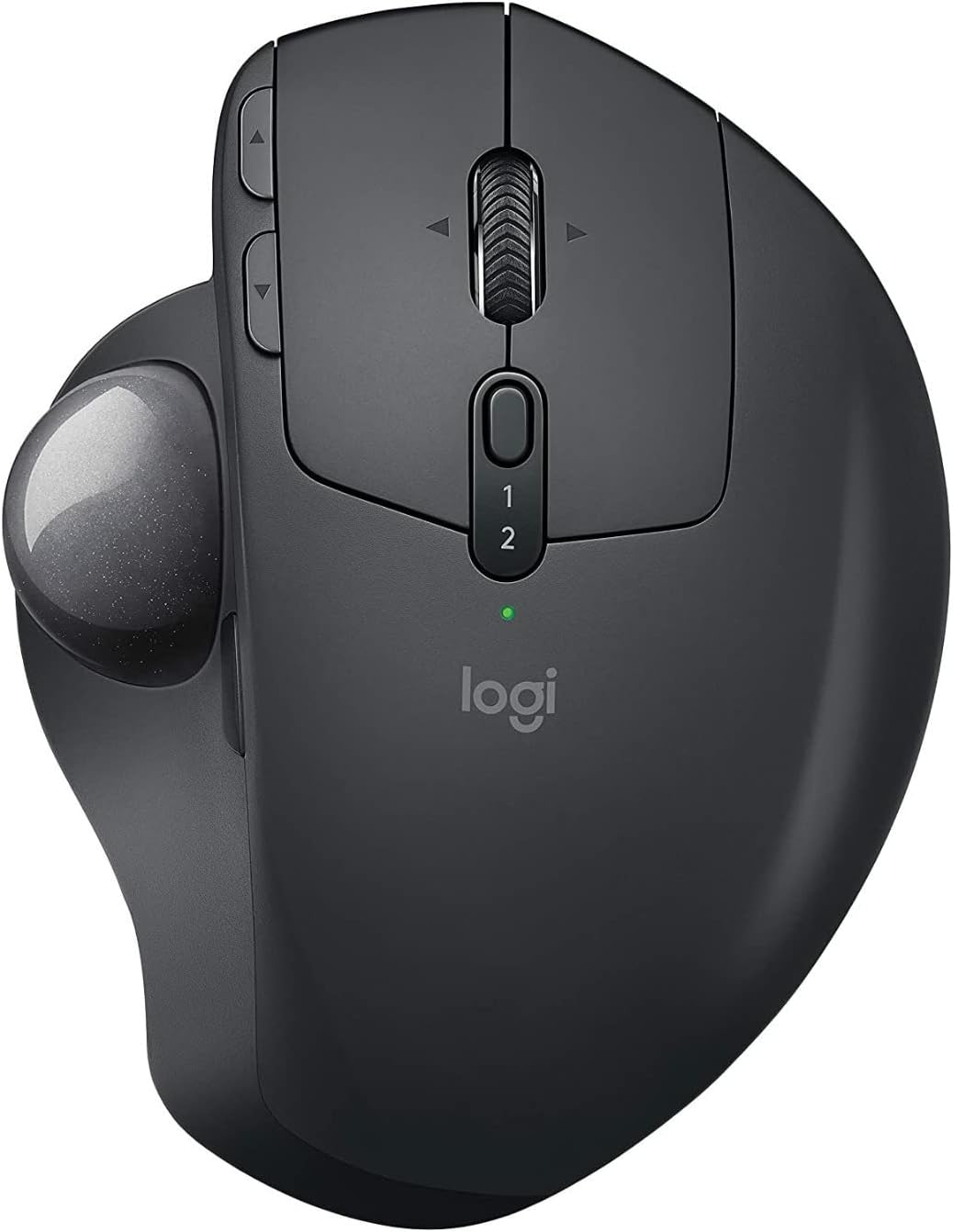
The Logitech MX Ergo Plus is a premium wireless trackball designed for PC and Mac users seeking ergonomic comfort and precision. Featuring an adjustable hinge with an extra 10° wedge for customizable tilt angles (0°, 20°, 30°), it reduces muscular strain by 20% compared to traditional mice. Its precision mode button allows instant switching between speed and accuracy, while Easy-Switch™ and FLOW technology enable seamless multi-computer control. With up to 4 months of battery life and quick charging, this trackball combines advanced functionality with long-lasting convenience.
| ASIN | B0768M8B5J |
| Average Battery Life (in hours) | 4 months |
| Batteries | 1 AAA batteries required. |
| Best Sellers Rank | #11 in Computer Trackballs |
| Brand | Logitech |
| Color | Graphite |
| Customer Reviews | 4.5 4.5 out of 5 stars (733) |
| Date First Available | October 7, 2017 |
| Hardware Platform | PC |
| Is Discontinued By Manufacturer | No |
| Item Dimensions LxWxH | 6.5 x 4.7 x 3.6 inches |
| Item Weight | 1.1 pounds |
| Item model number | MX Ergo Plus |
| Manufacturer | Logitech |
| Operating System | Windows 7, Windows 8 |
| Power Source | Battery Powered |
| Product Dimensions | 6.5 x 4.7 x 3.6 inches |
| Series | MX ERGO Wireless Trackball |
A**7
Retired Senior -- It's Not That Hard To Learn
If it weren't for Repetitive Stress issues, I would never have considered a trackball mouse. Now that I have it, I wish I would have looked at it sooner. For me it was not hard to learn although there is an adjustment period. Simply adjust/experiment with the settings until it behaves the way you want and let your thumb get adjusted to its new responsibilities. I'd also recommend alternating between adjusting the settings and then using it awhile before adjusting it again. It may take a while for your hand to acclimate. Constantly changing settings may not be helpful. Pick a reasonably good setting; get used to the trackball; and fine tune later. After this, you can consider programming different button assignments for your specific needs. I'm also glad I purchased the Plus version. That extra 10 degrees was definitely helpful in my case. I like it at 30 degrees. In addition, it gives people the ability to increase the tilt by only 10 degrees. Just attach the plate and leave the Ergo MX in the zero degree position and the plate will give you 10 degrees. So instead of just 0 or 20 degrees built into the MX, you now have 10, 20, or 30 degrees. The wireless dongle and Bluetooth both work great as I use both routinely. At this juncture I am very pleased with my new Logitech trackball mouse and although it is a more expensive option, it is a quality built product. I like the fact that it is also a bit heavier than some similar products because it is less apt to move around. The only reason you might want a lighter option is if you travel a lot and you're trying to minimize weight at all cost. That said, unlike a traditional mouse where weight might be a concern for RSD or gaming, a trackball mouse is not being moved; so a little weight, in my opinion, is actually your friend. While certainly not necessary for traveling, I also bought an MX Ergo travel case for additional protection. It conveniently holds the MX , the charging cable, and the extra plate. While your mileage may vary, if you are trying to minimize wrist and hand stress, I can highly recommend the MX Ergo Plus.
M**K
My wrist stopped hurting on day 1!
My wrist gets really inflamed and sore with my normal mouse but I've feared trackball mice because I'm old and hate change. But the pain got so bad I was willing to try it. I am glad I did, and recommend this mouse. I think some of the key features make it worth the price to upgrade from a basic trackball. On the first day my wrist pain was gone. And the trackball is surprisingly easy to get used to. I feel like if I can use it this competently on the first 2 days that within a week it will be as easy as a normal mouse. PROS: - the adjustable tilt is great as I can easily change the angle depending on my position and what's comfortable at the moment. - there is a small button by the ball that changes to "precision" which makes the cursor move in a tiny area so you can hit precisely vs the mouse moving so fast with the ball. Even though I've found it easy to land the cursor over buttons and in cells in spreadsheets, this precision feature will come in handy maybe for working in design programs and things like that. Or hitting a small target. - programable keys. I made the up and down arrows on the left to be copy and paste which is handy! - mouse-caused wrist (and some shoulder) pain subsided within the first day! It's not GONE GONE but compared to how it was it is drastic. I hope it gets even better with time. - Learning curve for a trackball is easier than I feared. - I connected it via bluetooth so it leaves a USB port open - I actually left my other mouse connected via USB so that I can swap them easily if I want to use a regular mouse for something. - You can use it while it's charging but it's wireless when not charging. I don't know how long a charge lasts yet. It's a standard micro USB charger I believe. - It's easy to switch between machines with the 1/2 button in the middle of the mouse, so I can use it with my laptop as well if I wanted. - You can adjust the trackball speed. I have it at 40% and it's comfortable to manage. - Their app makes it very easy to program the buttons from their preset options (a drop down of functions you can choose from for each button.) You can also program a default setting for the buttons and a different set of button functions that will automatically switch to when using your web browser. (So maybe I don't want the button to Copy/Paste, I want it to FWD/BCK instead when in Chrome.) CONS: - the one I got the right click didn't work and I had to return it for a replacement. - I wish it could tilt forward and backward as well as left and right. My desk is a sit / stand desk and the angle is awkward when I'm standing and reaching down to the mouse because it bends my wrist to hold the mouse correctly. I might just keep the other mouse connected to use when standing. - The add on riser is a little slick on the bottom and will move on my desk w pressure. I put it on a mouse pad and it works fine. I recommend a mousepad with the double bumps (NOT a single ridge) at the wrist to settle your hand into. Usually they are tacky anime b**bs or bu**s but they do make them in dog and cat or plain work-friendly ones (search amazon for "ergonomic wrist mouse pad anime but be aware it's a bit NSFW for a lot of the results!) They are SOO comfortable and pair nicely with this mouse to hold your wrist in a single position. - The clearance of the mouse is a bit higher than I am used to so I have to lift my hand up first to pop back over to the keyboard. It's a slight nuisance but will probably be second nature soon - You need a logitech app to change mouse settings. I hate having apps for everything, but that said, it made it VERY easy to do basic button programming choosing from their options. I haven't explored more advanced button programming.
J**U
The best mouse EVER!!!
The best mouse EVER!!! This is the second one I have, the previous one had a long and productive life, but cannot ask for more from it... great battery, connectivity and accuracy. But the best, by far, is the ergonomics. This one, with the extra 10°, just got even better!!!. Totally recommendend!!!
L**A
I keep coming back…
I have used all kinds of mouses over the years but I started getting pain in my wrist and was recommended to switch to a track ball. This was about 5 years ago. I ordered one of these and no more pain! It lasted about 6 months before the Bluetooth stopped worked but Logitech replaced it for free. The replacement lasted until 2 months ago, the left click started double clicking or not clicking at all. I ordered this wedge option as my replacement. My hands are small and I can’t use the mouse and rest my wrist on the desk so I usually have a wrist pillow but it’s still not completely comfortable, my hand always feels a bit stretched. I was hoping the wedge would make a difference and it kind of does but it’s almost too much of an angle. I need something in between! Otherwise, this mouse is amazing.. I wish they’d re-make it with additional buttons and slightly tilted towards the wrist so my hand isn’t angled against my arm. Otherwise I love this mouse.
ろ**う
いろいろ種類があって迷いましたがこれにしました、角度をある程度調節できるのがイイです。
A**R
I have been a M570 user for years, so I'm not new to trackball mice. My M570 broke down recently and I was debating between the successor M575 or the much more expensive MX Ergo. I decided to go for the latter, and I'm glad I did!. It is much more comfortable, and the customization options (+ the horizontal scroll) are truly game changer. I highly recommend this mouse, especially compared to the M575.
M**G
Funciona a la perfección y está increíble que se puedan programar funciones específicas a cada botón. Lástima que el cable de carga no sea USB-C, de allí en fuera es perfecto
D**H
I absolutely love this mouse, should have got one sooner. It is pricey, but you get what you pay for with this mouse. I has terrible pain in m wrist after using computers (Apple and PC) for the past 30 years with various mice, including the Ergo mouse that died. This is much better as the writs doesn't move...that said if you have thumb issues be mindful as the thumb controls the whole movement. I love this mouse so much that when it dies I will get the next available one.
さ**ん
これを使い始めると、他のトラックボール、マウスは使いにくく感じます。 手にフィットしてとても使いやすいです。 さらに下に台が付いていたのでさらにいいですね。
Trustpilot
2 days ago
1 month ago